

Overview › Build it with AI › Lesson 1
Set up Claude or ChatGPT in Excel
Both assistants install as Excel add-ins and open in a pane beside your worksheet. Pick one, install it, and sign in. Then set a few privacy habits before any client data goes near it.
You will be able to
- Install the official Claude or ChatGPT add-in in Excel for Windows or Mac, and sign in.
- Tell the official add-in from look-alikes by its publisher.
- De-identify client data, check your account's model-training setting, and save a copy of the workbook before you send a prompt.
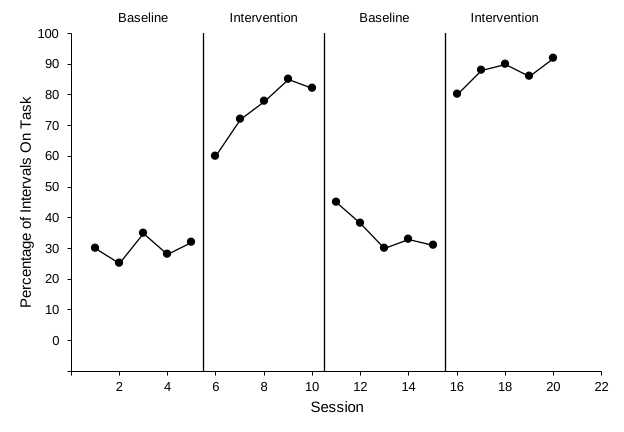
- added a scatter chart with one series per phase
- set both axes and fonts
- added 3 phase-change lines from G1:H7
- added phase labels from J1:L5
Which assistant?
Either one works with every prompt in this series. Use the one your plan or institution gives you.
| Claude for Excel | ChatGPT for Excel | |
|---|---|---|
| Made by | Anthropic. In Microsoft Marketplace it is the Claude for Microsoft 365 add-in, which also covers Word and PowerPoint. | OpenAI. Marketplace listing ChatGPT, publisher OpenAI, LLC. |
| Plans | Paid Claude plans: Pro, Max, Team, and Enterprise. Not available on the Free plan. | All ChatGPT plans, with limited use on Free and Go. On Edu and Enterprise workspaces an administrator must turn it on. |
| Excel versions | Microsoft 365 on Windows and Mac, and Excel on the web. Not Excel 2016/2019 one-time-purchase versions or iPad. | Microsoft 365 on Windows and Mac, and Excel on the web. |
| Before it edits | Warns before overwriting data and asks you to confirm risky operations. Changed cells are highlighted. | Asks for permission before making changes, so you can check each step. |
Checked October 17, 2026 against the official pages: Claude for Excel docs, ChatGPT for Excel help. Plans and requirements change, so check those pages if something doesn't match.
Install and sign in
Claude for Excel
- Open the add-ins store from Excel. WindowsIn Excel, go to Home›Add-ins. MacIn Excel, go to Home›Add-ins, or choose Tools›Add-ins in the menu bar. Search for Claude.
- Add the official add-in. Choose Claude for Microsoft 365 (or Claude by Anthropic for Excel) published by Anthropic, and click Add. You can also install it from its Microsoft Marketplace page with Get it now.
- Open it and sign in. Open Claude from its button on the ribbon, or from the Add-ins menu where you found it. In the pane that opens, sign in with your Claude account.
ChatGPT for Excel
- Open the add-ins store from Excel. WindowsGo to Home›Add-insMacGo to Home›Add-ins and search for ChatGPT.
- Add the official add-in. Choose the one published by OpenAI, LLC and click Add. Several similar-looking "GPT for Excel" add-ins come from other companies. Avoid those for client work.
- Open it and sign in. Click ChatGPT on the ribbon and sign in with the ChatGPT account that has your plan.
Have Microsoft 365 Copilot through your university? Copilot in Excel can also create and edit charts, and some licenses let you choose a Claude or GPT model. The prompts in this series work there too. Check with your IT office about which Copilot features your license includes.
Protect client data
Single-case data usually come from real clients or research participants. Treat the AI pane like an email to an outside company.
- De-identify first. No names, initials, birth dates, or session dates that could identify someone. Use codes such as Participant 1.
- Follow your rules. Your IRB protocol, HIPAA and FERPA obligations, and your agency's or university's AI policy apply to these tools. When in doubt, ask before uploading.
- Prefer an institutional account. Business, Enterprise, and Edu plans from both companies don't use your content to train models by default.
- On a personal plan, check training settings. In ChatGPT, turn off Improve the model for everyone under Settings›Data Controls. In Claude, check your privacy settings to confirm whether model training is turned on.
- Mind shared computers. Claude for Excel keeps your chat history, including workbook content it read, on the device. Clear it in the add-in's settings on lab or clinic machines.
- Work on a copy. Save a copy of the workbook before you prompt, so your original data can't be changed by mistake.