
A virtual second monitor
Create a 1920 × 1080 extended Windows display without connecting another physical screen.

A little more room to present.
Give your presentation a screen of its own. SecondSpace adds a virtual second monitor to Windows, with a live preview you can resize, minimize, or control while your main screen stays available for notes and other work.
Application previewSecondSpace 1.3.0 · Images show the application interface with a sample presentation.
Create a 1920 × 1080 extended Windows display without connecting another physical screen.
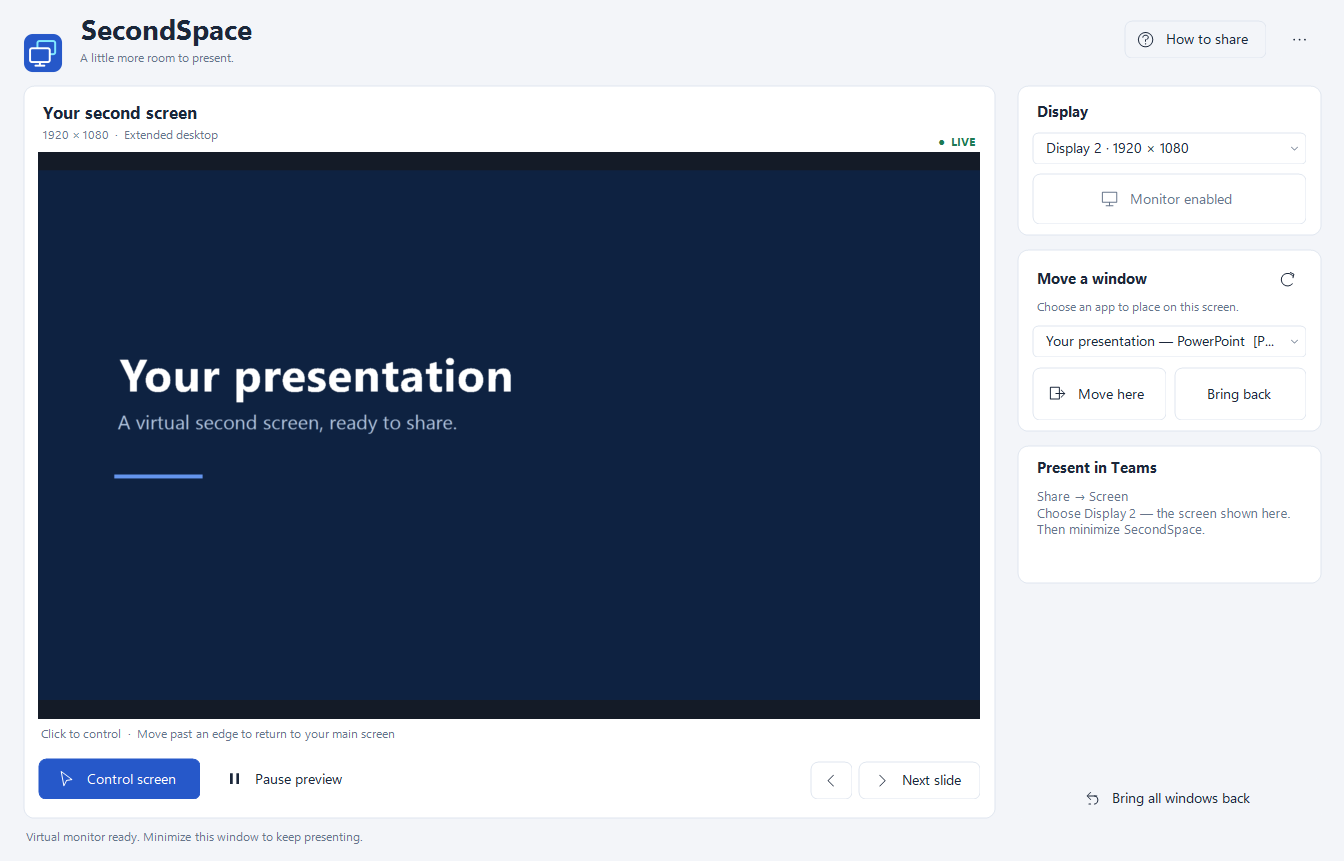
Keep an eye on the virtual display in a resizable window. Minimize, pause the preview, or close the viewer while the monitor stays active.
Choose an open window and move it to the second screen. Bring it back individually, or return all windows to your physical display.
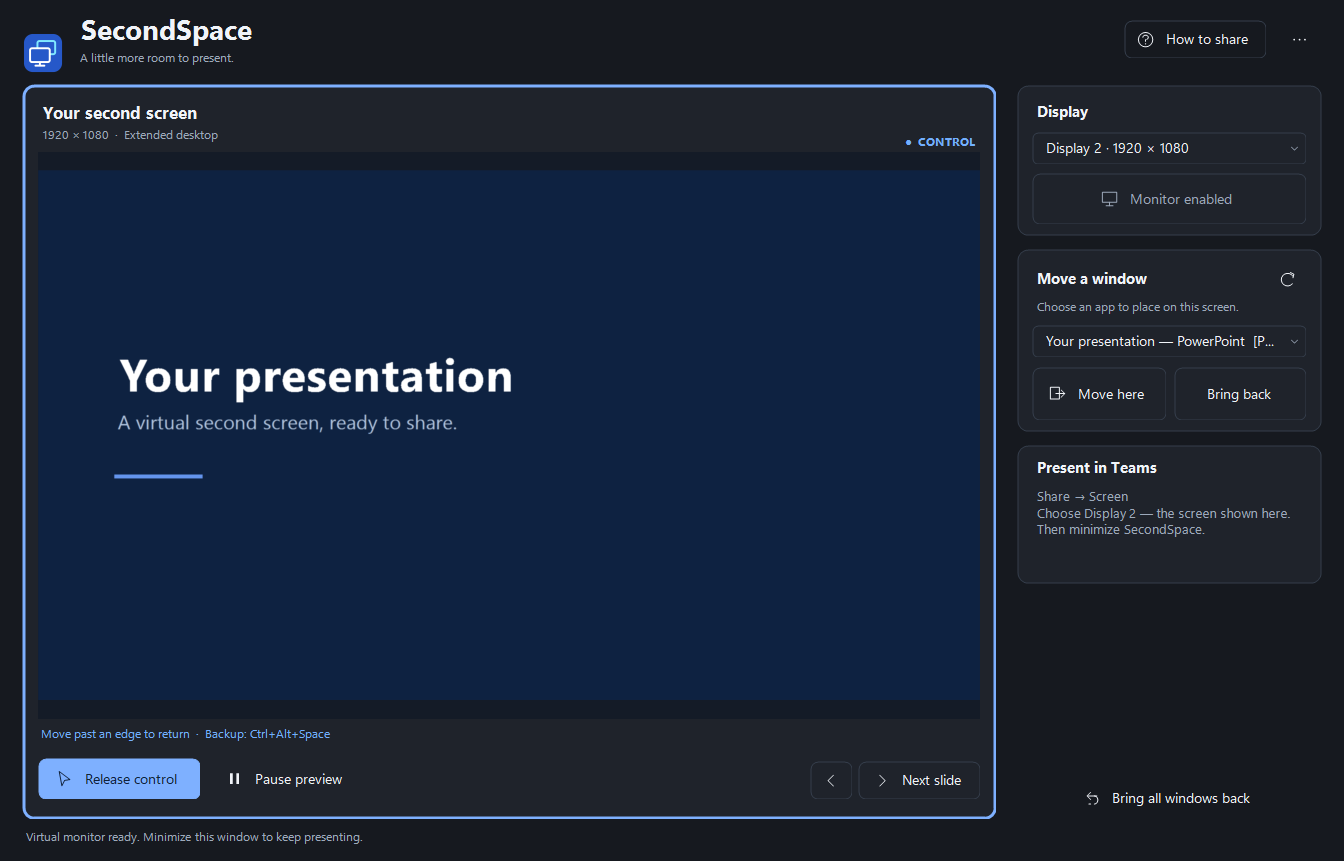
Click, drag, scroll, and type on the virtual screen. Move past an edge of the preview to return your pointer to your main screen.
Use Previous and Next slide controls for PowerPoint. Keep Presenter View and your notes on your physical display.
The interface follows Windows light, dark, and high-contrast settings, with clear indicators for live preview and screen control.
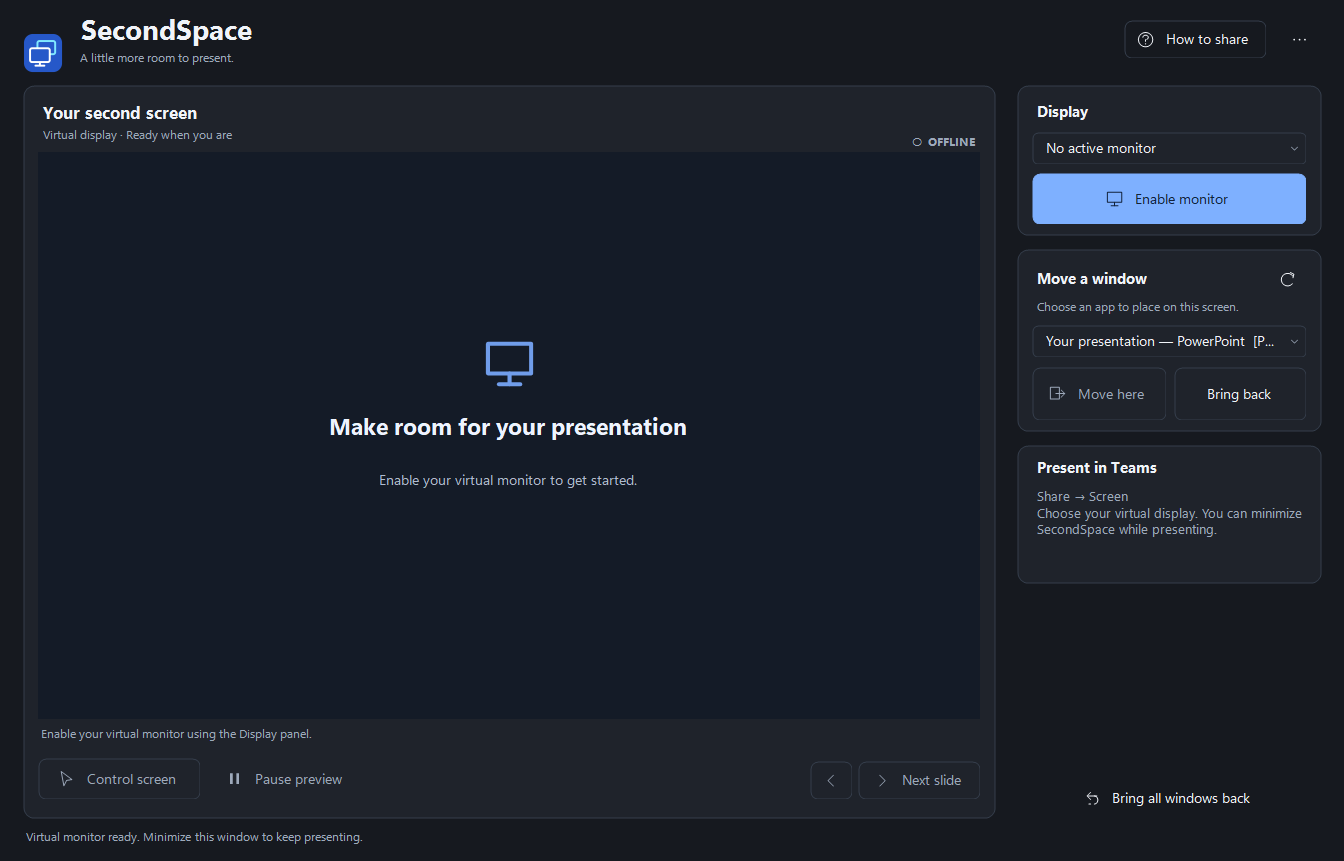
01 / Make room
Enable the virtual monitor, then choose the window you want to move. Display setup, window placement, and sharing guidance sit together beside the preview.
02 / Take control
Click inside the preview or select Control screen to interact with the virtual display. A blue border and control indicator show when input goes to that screen. Return through a preview edge, release control, or use the displayed backup shortcut.