
Bring your recipient list
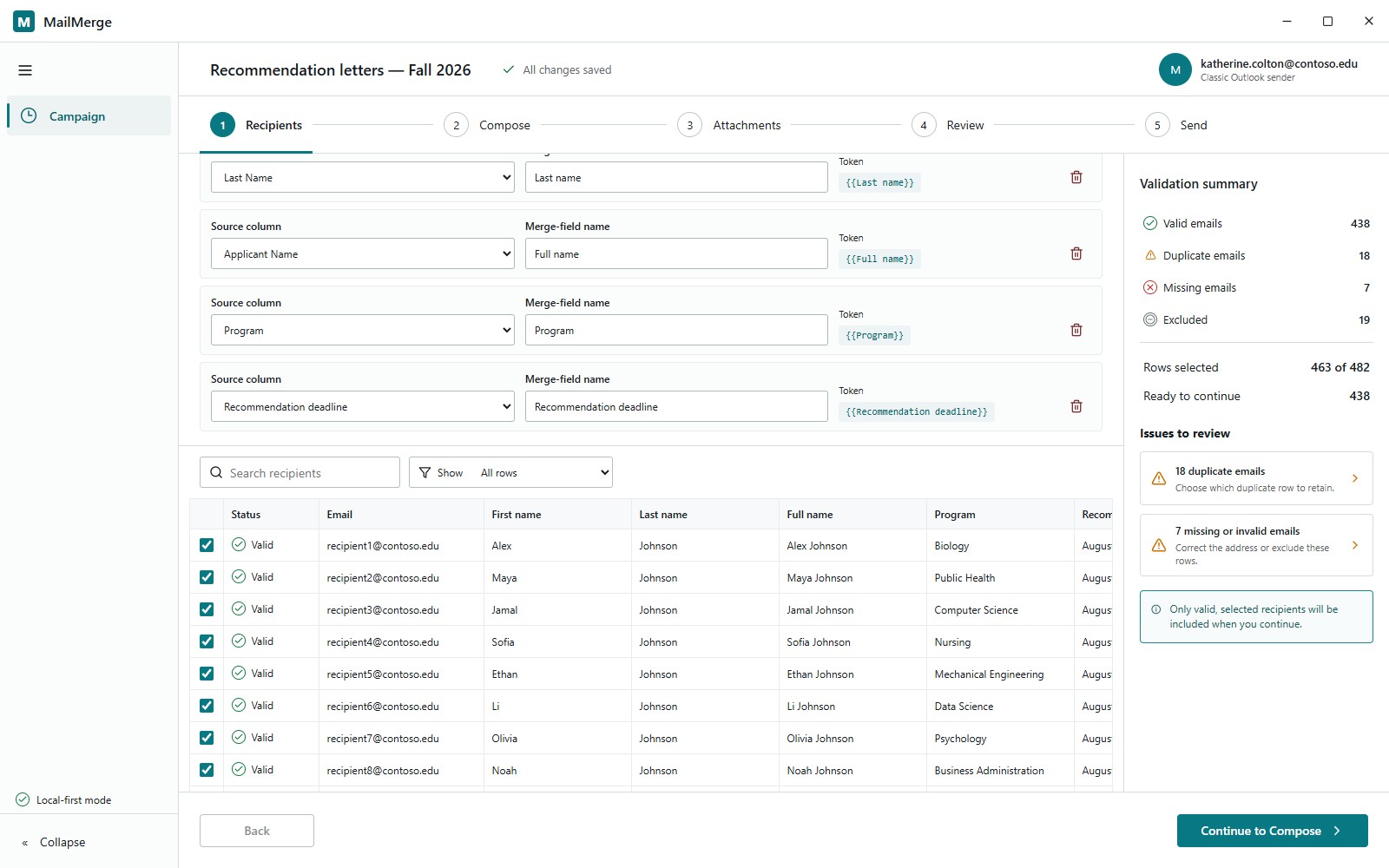
Import CSV, XLS, or XLSX files. Map the email column and choose the spreadsheet fields to use in your message.
One spreadsheet.
A personal email for every recipient.
A Windows desktop application that turns a recipient list into individual Microsoft 365 messages. Bring in your spreadsheet, write once with merge fields, and check the personalized result before creating drafts or sending.
Application previewScreenshots below use fictional sample data.
Import CSV, XLS, or XLSX files. Map the email column and choose the spreadsheet fields to use in your message.
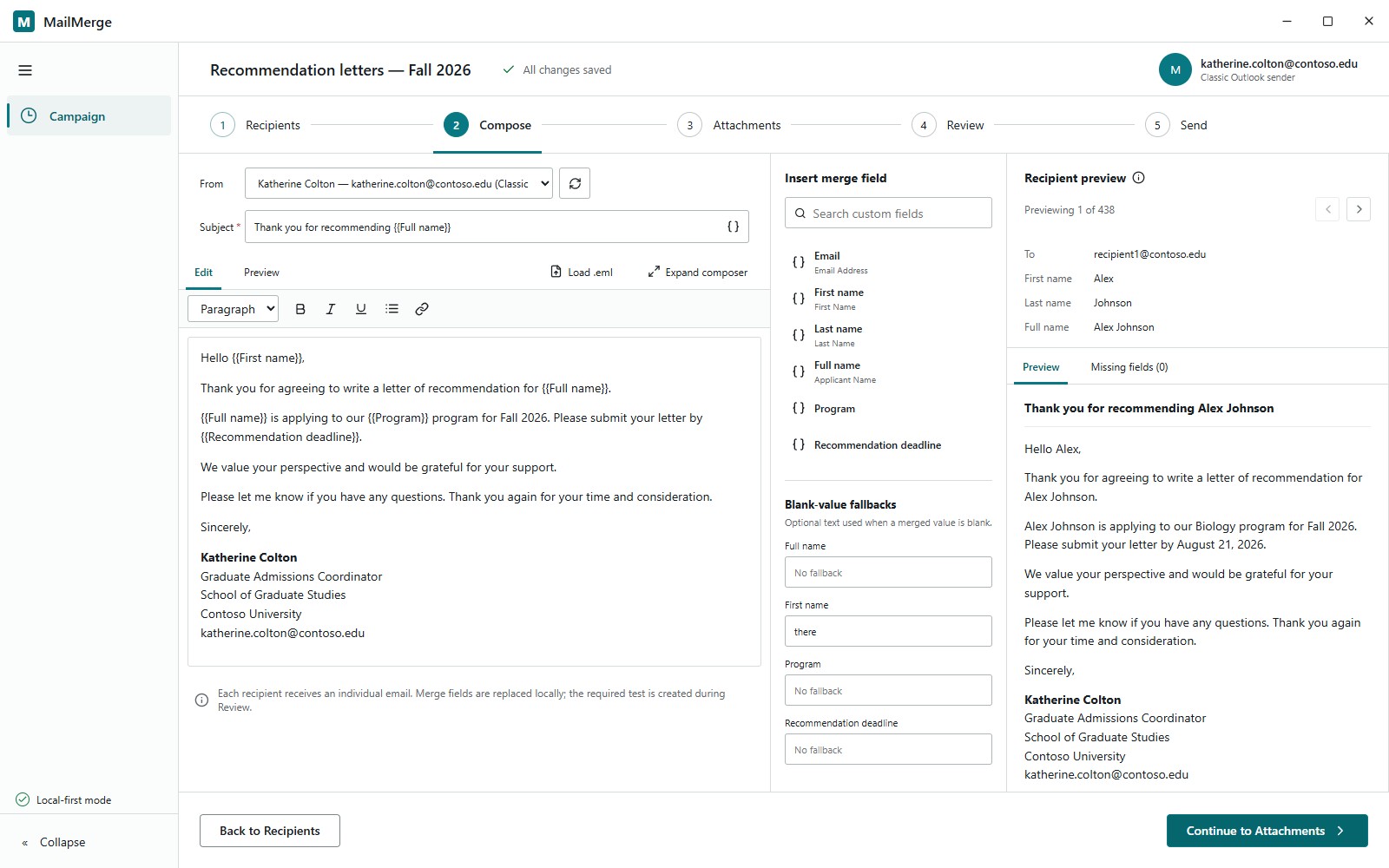
Write a subject and formatted message with custom merge fields, or load an Outlook .eml template. Preview the result for each recipient.
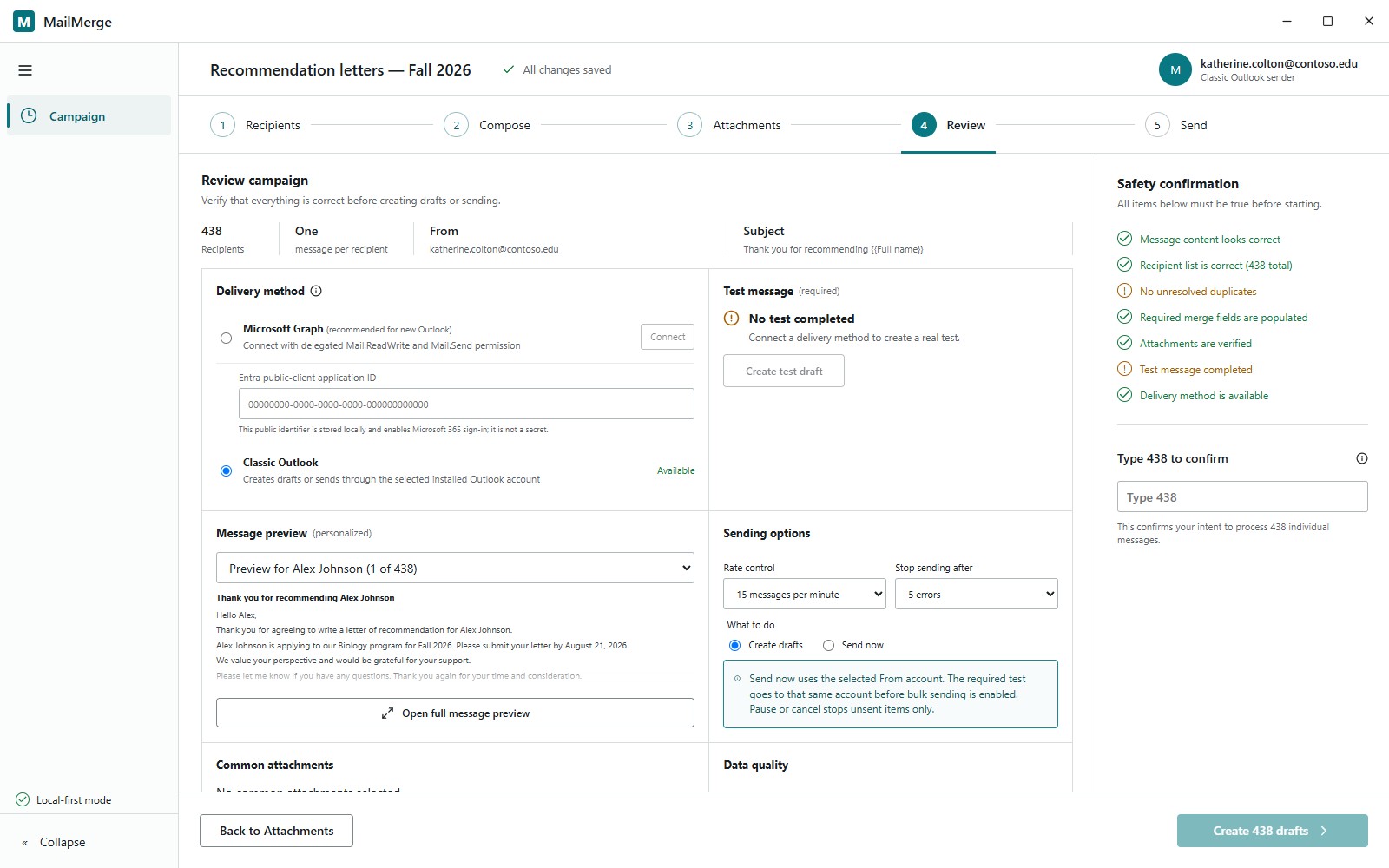
Check recipients and common attachments, complete a real test, and confirm the recipient count. Create drafts or send at a controlled rate.
01 / Recipients
See imported rows alongside field mapping and validation. MailMerge flags duplicate addresses, missing email addresses, and missing merge values so you can review issues before moving on.
02 / Review
Review the sender, delivery method, personalized message, and attachments in one place. The desktop application supports Microsoft Graph and classic Outlook, with a required test and confirmation before a campaign starts.